SoftPro Select 4.0.0 (4.0.30302.9) - 3/9/2015 - Part 8 of 9
The Closing Disclosure Form (CDF) requirements have affected some of the areas where the application is configured.
Formulas
· For CDF orders only, the user may assign a CDF section and Line number via a new SelectCDFLine() formula function. Note: Access the formula editor by using the F8 key.
o The formula can be used in templates and in the CDFLine column in a lookup table.
o Using this formula will prevent a lookup entry from selecting the CDF Line before the charge is ready to be sent to the CDF, and it will prevent unrelated charges from defaulting to the same CDF Line.
o For example, in order to select the next available Section H line when the entry is retrieved into the order, the CDF Line column would need this formula:

§ When the charge is actually ready to be sent to the CDF, the next available CDF Line in Section H will populate.
· Allowed parameter values for the Formula Editor and text fields in the Policy Manager:
|
Allowed Value |
Example |
|
SectionLetter |
B |
|
SectionLetter. |
B. |
|
SectionLetterNumber |
B01 |
|
SectonLetter.Number |
B.01 |
|
SectionLetter<space>Number |
B 01 |
|
SectionLetterNumber, no leading zero for the number |
B1 |
|
SectionLetter.Number, no leading zero for the number |
B.1 |
|
SectionLetter<space>Number, no leading zero for the number |
B 1 |
Permissions
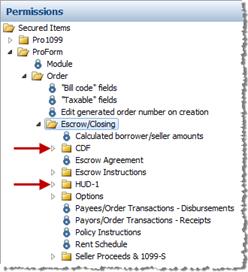
· New CDF permissions have been added under SPAdmin > Configuration > Security > Permissions > ProForm > Order > Escrow/Closing.
o HUD-1 specific permissions have moved under a HUD-1 subfolder. CDF permissions are in a CDF subfolder.
o On upgrade from prior versions of Select, user and group rights to the new CDF permission will be set to the same rights as the existing HUD-1 permission. CDF Line dropdown permission will default from the existing HUD-1 & HUD-1 Line dropdown permission.
o All new and existing loan fields that are on CDF Pages 1-5 will be governed by both CDF and Loan permissions unless otherwise specified.
The Order tab has been modified:
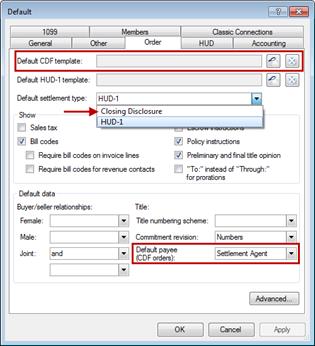
· Default CDF template: Allows user to browse and select a default template for CDF orders.
· Default settlement type: Allows users to specify a default settlement type on the New Order dialog. The default preference is HUD-1; the settlement type can still be changed on the New Order dialog.
o Note: It is recommended that users modify this preference to Closing Disclosure when the new Closing Disclosure form is effective.
· Default payee (CDF orders): Allows users to specify the default payee for title fees originating from Title Insurance Premiums, Endorsements, & Additional Title Charges. This payee will also be used to determine Sales Tax.
The Accounting tab has the following changes in the Accounting > Advanced area:
· A CDF Order Balance Sheet dropdown list has been added for letter- or legal-sized CDF Order Balance Sheets.
· The Order Balance Sheet dropdown list was renamed to HUD-1 Order Balance Sheet and contains letter- and legal-sized HUD-1 Order Balance Sheets.
· A CDF Disbursements Summary dropdown list has been added for letter or legal-sized CDF Disbursements Summary reports.
Policy Manager
· A CDF Line textbox has been added to the Owner’s Policy and Loan Policy tabs underneath Send premium to:
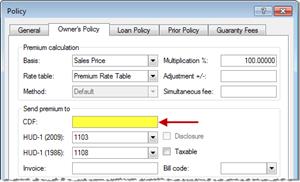
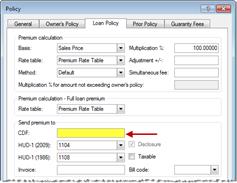
o The user may use this field to specify a particular CDF line. Options that may be input here include: B.01-B.99, C.01-C.99, H.01-H.99. The user can also notate a section letter and when the Policy Manager is retrieved into ProForm, the next available line in that section will be selected. When a value is populated in this field, it will retrieve into ProForm as a formula behind the field. Note: it is strongly recommended that setting the CDF line for title fees be done via the new dropdown lists on the Options screen underneath the Title – CDF section defaults.
· A CDF Line textbox and a HUD-1 Line dropdown has also been added to the Owner’s Policy tab underneath Send seller credit to: These fields are only relevant in CDF and HUD-1 orders when the Show full premium on CDF/HUD-1 is checked for a simultaneous issue on the Title Insurance Premiums screen.
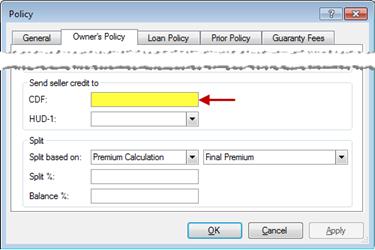
oThe user may use the CDF line textbox to specify a particular CDF line for CDF orders. Options that may be input here include: L.04, L.08-L.11, L.15-L.17.The user can also notate a section letter and when the Policy Manager is retrieved into ProForm, the next available line in that section will be selected. When a value is populated in this field, it will retrieve into ProForm as a formula behind the field. Note: it is strongly recommended that setting the CDF line for title fees be done via the new dropdown lists o the Options screen underneath the Title – CDF section defaults
o The user may use the HUD-1 Line dropdown to specify a particular HUD-1 line for HUD-1 orders.
· A Rate Table drop-down has been added to Loan Policy tab which applies to Simultaneous issue policies. This field is only relevant in CDF and HUD-1 orders when the Show full premium on CDF/HUD-1 is checked for a simultaneous issue on the Title Insurance Pemiums screen.
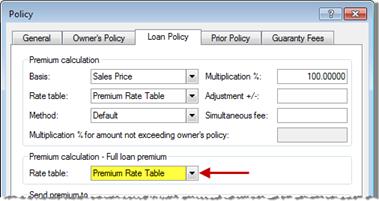
o This corresponds with the new Full loan premium rate table dropdown added to the Loan Policy Premium and Split section of the Title Insurance Premiums screen.
· Guaranty Fees tab: the Bill code and Payee field labels have been renamed from (2009) to (CDF/2009).
Lookup Tables
· HUD-1 lookup fields will only retrieve into HUD-1 orders; CDF lookup fields will only retrieve into CDF orders.
· Custom lookup tables containing HUD-1 fields will retrieve into HUD-1 orders, and will not affect CDF orders that don’t support those fields.
o Users will need to manually update lookup tables to include new CDF fields as needed.
· Since CDF lines re-sort alphabetically, hard-coding a CDF line in a lookup table may unintentionally group the item with another item that is now on the hard-coded line. Therefore, an option has been added to choose the next available CDF line by specifying the section in the lookup table with a formula.
· Note: The CDFLine column was not added to the endorsements lookup table in order to encourage users in the best practice of using the Options screen to set the CDF line for endorsements. Additional title charges are likewise recommended to use the Options screen to set the CDF line, rather than adding the CDFLine column to the lookup table.
· Using formulas in lookup tables:
o To select a CDF Section and Line # to be put in a lookup:

o Set the next available CDF section or line based on another existing item of the same type. For example: here’s a formula that can be used to a line or next available section based on where the 1st HOA fee exists:

· All fields in a template or order will be copied into templates and orders when choosing a template or order on the File/New dialog or via the Apply Template feature. The following exceptions apply:
o Order.Number
o Order.Ownershipprofile
§ This item only copies from one order to another order; it won’t copy from a template to an order.
o Order.Statuslock
o Order.Escrow.Statuslock
o Order.Invoice.Status
o Order.Workflow
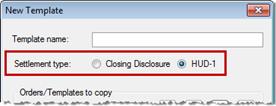
· Settlement Type radio buttons have been added to the New template dialog.
· A new CDF order may be created using a HUD-1 template, or by using the Apply Template feature and selecting a HUD-1 template/order.
o The following will not copy to a CDF order:
§ HUD-1 Section fields (700-1300, 1500, 100-500), Express HUD-1 Pages 1-3, and the HUD-1 Header, and the field exceptions listed above.
o The Options Screen will only copy the following items:
§ Use buyer/seller split feature, Print approval signature lines on Order Balance Sheets, Use Individual Settlement Statement rules to calculate buyer/seller receipts and disbursements, Use individual buyer codes for receipts and disbursements, Use individual seller codes for receipts and disbursements, Print tax proration disclosure on Buyer/Seller Certification, & “The buyer & seller understand that the tax…”
· A new HUD-1 order may be created using a CDF template, or by using the Apply Template feature and selecting a CDF template/order.
o The following will not copy to a HUD-1 order:
§ CDF Page fields (CDF Pages 1-5), CDF Line drop-downs, and the field exceptions listed above.
o The Options screen will only copy the following:
§ Use buyer/seller split feature, Print approval signature lines on Order Balance Sheets, Use Individual Settlement Statement rules to calculate buyer/seller receipts and disbursements, Use individual buyer codes for receipts and disbursements, Use individual seller codes for receipts and disbursements, and the three dropdown fields under Title – CDF section defaults for CDF orders
§ If line sorting is defaulted in an order, but a template has the sort option manually checked or unchecked, then the template’s setting will apply.
§ If the sorting is manually checked or unchecked in the order, then the order’s setting will apply.
· Since CDF lines resort alphabetically, hard-coding a CDF line in a template may unintentionally group the item with another item that is now on the hard-coded line.o To ensure this doesn’t happen, the CDF Line can be selected in the template as has always been possible with HUD-1 Lines.
o A formula can also be used to select the Next Available CDF line in a section.
· Using formulas in templates:
o Select a CDF Section and Line # to be put in a template:

o Set the next available CDF section or line based on another existing item of the same type. For example: here’s a formula that can be used to a line or next available section based on where the 1st HOA fee exists:
