SoftPro Select 4.0.0 (4.0.30302.9) - 3/9/2015 - Part 7 of 9
In addition to five pages/screens that have been added with the Closing Disclosure Form (CDF), the new requirements have affected several other order screens.
Register
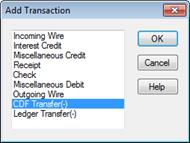
· A new transaction type has been added; CDF Transfer(-) will be available when an order has multiple CDF’s:
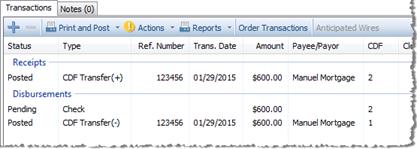
· When posted, a new transaction type CDF Transfer(+) will be created:
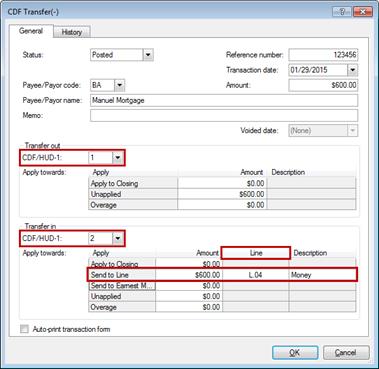
· The fields outlined in red below are changing for all applicable transaction types on both HUD & CDF orders.
o The CDF/HUD-1 dropdown will apply to all transaction types.
o The Send to Line and Line changes will apply to all receipt transaction types, such as Incoming Wire, Miscellaneous Credit, Interest Credit, and Receipt, as well as the Transfer Section of transfer types CDF Transfer(-), HUD Transfer(-), and Ledger Transfer(-).
· License ID: A license number has been added to all contacts, excluding Buyer & Seller.
· NMLS ID: The Nationwide Mortgage Licensing System ID number appears on Attorney, Escrow Company, Lender, Listing Agent, Loan Servicer, Mortgage Broker, Other Contact, Selling Agent, Settlement Agent, Title Company, and Underwriter contacts.
· Disclose Portion of Premium on line: This drop-down has been removed from Attorney, Escrow Company, Settlement Agent, Title Company, and Underwriter contacts on a CDF order.
· Short Name: A “Short name” field has been added to all contacts; and will default from the Name field. This field already exists for buyer/seller contacts. This field can be overwritten with an abbreviated version of the Name for any documents where there are space limitations for the name, and is used by CDF Page 5 Contact Information.
· Sales Tax: When the Sales Tax option is checked in SPAdmin, the Sales tax fields will appear on certain order contacts in a CDF order as they did in HUD-1 orders. In CDF orders, the Calculate total tax option is labeled as Calculate total tax in CDF section and sales tax can be sent to Section B. Services Borrower Did Not Shop For, Section C. Services Borrower Did Shop For, or Section H. Other Charges. A new description field has been added for CDF orders; the value entered will appear as the default description on the line where sales tax is calculated.

· License ID: A license number has been added to all Contact People, excluding the buyer & seller.
· NMLS ID: The Nationwide Mortgage Licensing System ID number has been added to the Attorney, Escrow Company, Lender, Listing Agent, Loan Servicer, Mortgage Broker, Other Contact, Selling Agent, Settlement Agent, Title Company, and Underwriter People screens; changes apply to CDF orders.
· CDF orders have a new Include on CDF checkbox. When checked, the amount entered will be sent to CDF lines K.02/M.02:

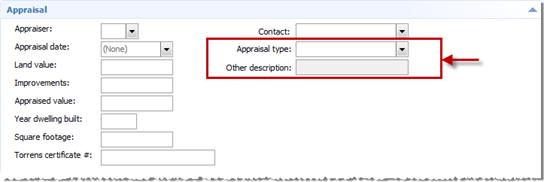
· Both CDF and HUD orders have two new fields on the Appraisal section of the Property screen: Appraisal type and Other description.
CDF Line Dropdowns
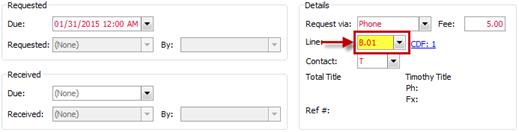
CDF Combo Boxes have been added to every location in the application that a HUD-1 dropdown was located. A few of these affected screens are: Requested tasks, Title Insurance Premiums, Endorsements, Additional Title Charges, HOA Charges & Prorations, Rent Schedule, Taxes, and Assessments. These boxes allow the user to send amounts to specific CDF lines. Several examples:
· Requested Tasks:
· Title Insurance Premiums:

· Additional Title Charges:

· Endorsements:


· The Disb. As Proceeds (507 Description) column has been removed in CDF orders.
· CDF Order Description column defaults to Deposit; HUD-1 order Descriptions continue to default to Deposit or earnest money.
· Deposit Amount: Enter the amount of the earnest money deposit.
· Amount Returned to Buyer: Enter any earnest money deposit amount returned to the buyer.
· Line: Select the line to send the Earnest Money Deposit. The default line for CDF orders is L.01.
· Received From: Select the buyer who is responsible for the earnest money deposit. This field defaults to all buyers (BA).
· Retained By: Select the appropriate order contact that is retaining all or a portion of the earnest money. Available options are Attorney, Listing Agent, Selling Agent, Seller, or Other contact.
· Portion Retained: Enter the amount retained by the contact selected in the Retained by drop-down.
· Excess Deposit: Enter any amount given directly to the Seller by the contact retaining the deposit. This field will become enabled when a portion of the deposit is retained by a contact other than the seller.
· CDF orders will not have the HUD-1 dropdown; all loans are required to be on their own CDF.
· Deleting a loan will automatically delete the associated CDF.
· The Principal amount of loan Line drop-down list is only editable on HUD-1 orders.
· The Construction/Equity first draw amount Line drop-down will be visible on both HUD-1 and CDF orders. A CDF: hyperlink will be visible on all CDF orders and when selected will quickly take you to the selected line.
Borrowers Grid
A Borrowers grid has been added to designate which buyer/borrower contact is a borrower on the loan. This grid appears in both HUD-1 and CDF orders:
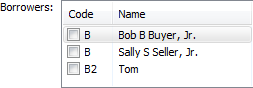
· Borrowers will be checked by default for all rows. If Cash Sale is checked on the Express Order Entry screen, borrowers will default to unchecked for all rows.
· The grid is sorted by the associated Borrowers’ contact Codes, and then by Name.
· Organizational contacts appear in the list on separate rows.
· Individual contacts appear in the list on separate rows and display the individual buyer’s full name.
Loan Terms & Payments
Four fields have been added or modified on the Loan Terms screen for both HUD-1 and CDF orders:
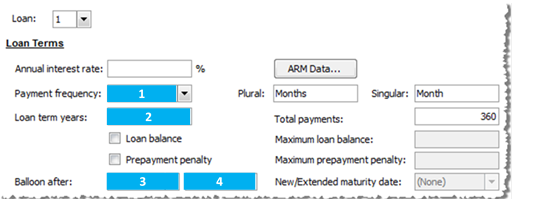
1. Payment Frequency: Select a payment interval. This replaces the Payments per year field with a word description of the payment interval. I.E. - 12 is now Monthly.
2. Loan term years: Defaults to 30; may be altered manually.
3. Balloon after: Select month(s), year(s), payment(s).
4. Balloon Payment Due in: Enter manually. This field previously existed in HUD-1 orders as Balloon after, and now allows month, year or payment values, depending on the selection in the Balloon after drop-down list.
Payment Information Letter
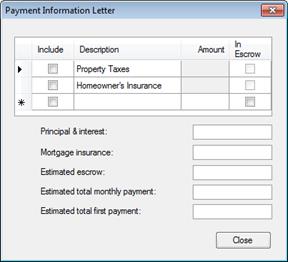
The Payment Information Letter dialog, accessed via the Loan Terms & Payments screen, has been updated to accommodate the grid and fields included in the Estimated Taxes, Insurance & Assessments section of CDF Page 1. Five fields now appear on the bottom of the dialog: Principal & interest, Mortgage insurance, Estimated escrow, Estimated total monthly payment, and Estimated total first payment.
The Options screen has been further updated to accommodate CDF orders. The new and updated options are:
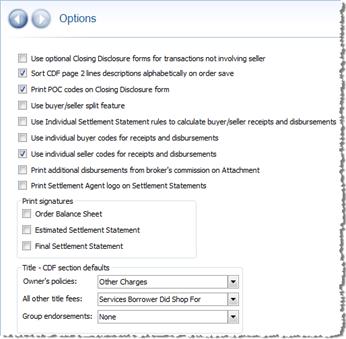
· Use optional Closing Disclosure forms for transactions not involving seller: Select this option to use the optional CDF Page 3 screen which shows Section K. Payoffs and Payments grid and the optional Calculating Cash to Close table. This option is typically used with refinance transactions.
· Sort CDF page 2 lines descriptions alphabetically on order save: Uncheck this option to disable the automatic sorting of CDF Page 2 lines.
· Print POC codes: Defaults checked. Causes the POC (paid outside of closing) codes to print on the CDF; works the same as a HUD-1 order.
· Use Buyer/Seller Split Feature: For calculated or sent over amounts on a CDF Page 2 charge, the Use buyer/seller split feature will force a balance only between Borrower-Paid At Closing with Seller-Paid At Closing, and Borrower-Paid Before Closing with Seller-Paid Before Closing. It will not force balance Paid at Closing with Paid Before Closing or Paid by Others.
· Print additional disbursements from broker’s commission: Checking this will print details of commissions disbursements to a 3rd party on the CDF Attachment page; a new ReadyDoc has also been added which may be used if this option is not checked.
· Print Settlement Agent logo on Settlement Statements: Select this option to print the logo associated with the Settlement Agent contact in the order at the top of the Settlement Statements.
· Print signatures: specify whether or not print signatures should be printed on the Order Balance Sheet, Estimated Settlement Statement, and/or the Final Settlement Statement.
· Title - CDF section defaults: This set of drop-down lists provides the user with a central location from which they may set CDF line defaults for title fees. These can be adjusted easily and will affect all fees without needing to go to each fee individually. Note: It is strongly recommended that CDF line defaults be set with these options. See CDF Line Dropdowns on Title Screens for other methods used to select CDF lines.
o Owner’s policies: Owner’s policies, owner’s policy guaranty and recoupment fees, and owner’s policy endorsements reference this option to determine which section to default their CDF Line to.
§ If this option is changed, calculated CDF Line dropdowns will default to the next available line in the newly selected section, but user-entered CDF Line dropdowns will remain the same, whether or not they were manually selected or populated from a lookup table.
§ Options: Other Charges, Services Borrower Did Not Shop For, and Services Borrower Did Shop For.
o All other title fees: Loan policies, loan policy guaranty and recoupment fees, loan policy endorsements, commitment endorsements, and additional title charges reference this option to determine which section to default their CDF Line to.
§ If this option is changed, calculated CDF Line dropdowns will default to the next available line in the newly selected section, but user-entered CDF Line dropdowns will remain the same, whether or not they were manually selected or populated from a lookup table.
§ Options: Services Borrower Did Not Shop For, Services Borrower Did Shop For, and Other Charges.
o Group endorsements:
§ Note: The CDFLine column is not included in the Endorsements lookup table by default. It is strongly recommended that users control selecting the CDF line via the Title - CDF section defaults options. If Endorsements need to be grouped in any way other than the grouping available with the Group Endorsements options here, the user must do this manually by selecting the same line in all CDF Line dropdowns.
§ None: Choose this default option if you want each endorsement to be itemized. The CDF Line for each Endorsement will default to the next available line in the same section as the parent policy. When selected:
- Loan Policy Endorsements: Will be sent to the same CDF that the parent policy is being sent to.
If the parent policy is not being sent to the CDF, then the section selected will be the one selected in the “All other title fees” dropdown, and
The CDF selected will be the one associated to the Loan tied to the parent policy.
- Owners Policy Endorsements: Will be sent to the same CDF that the parent policy is being sent to.
If the parent policy is not being sent to the CDF, then the section selected will be the one selected in the “Owner’s policies” dropdown, and
The CDF selected will be the first CDF.
- Commitment Endorsements: will be sent to the section selected in the “All other title fees” dropdown, and to the first CDF.
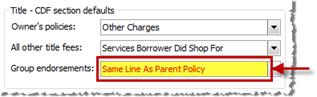
§ Same Line As Parent Policy: Choose this default option if you want endorsements to be grouped on the same CDF line as its parent policy. When selected,
- Loan & Owner’s Policy Endorsements default the CDF Line to the same line selected on the parent policy.
- Commitment Endorsements default the CDF Line to the next available line in the All other title fees section on the first CDF. Endorsements on the same commitment are sent to the same line.
- Endorsements will not default a CDF Line until the parent policy has a CDF Line.
§ Separate Line From Parent Policy: Choose this default option if you want endorsements associated to the same policy type to be grouped together in the same CDF section as the policy. When selected,
- All Endorsements belonging to the same title product will be grouped on the next available line in the appropriate section. For example, all endorsements for the first Loan Policy will be grouped together on the same CDF line in the same section that contains the first Loan Policy.
- The CDF and the section will be determined for each product (Loan Policy, Owner’s Policy, and Commitment) following the rules described in the “None” section above.
o Endorsements – Options for Grouping on the CDF: Grouping Endorsements with the Options screen: The following example demonstrates how the Same Line as Parent Policy option works; see options details above for a description of the other two options.
§ An order is created & the Same Line As Parent Policy endorsement grouping option is set on the Options screen:
§ A Simultaneous Issue policy is added.
- The Owner’s Policy premium is sent to H.01 (CDF Page 2) by default, as “Other Charges” is the selection in the Owner’s policies dropdown.
- The Loan Policy premium is sent to C.01 (CDF Page 2) by default, as “Services Borrower Did Shop For” is the selection in the All other title fees dropdown.
§ Two Endorsements are added to the Owner’s Policy. They are automatically being sent to H.01, grouped with the Parent Owner’s policy.
§ Two Endorsements were added to the Loan Policy. They are automatically being sent to C.01, grouped with the Parent Loan policy.
§ The Title Policy Fees and Endorsements are grouped together on CDF Page 1 in Sections C & H.
- Note: An itemization can be seen on the CDF attachment page
o Adjusting endorsements grouping is simple, and can be done at any time from the options screen.
The new regulations require title insurance premiums to be disclosed in a specific way for simultaneous issues. The loan policy premium amount disclosed on the Closing Disclosure form must reflect what the premium would be if it were not a simultaneous issue. The owner’s policy premium must reflect the difference between that loan policy premium and the total cost of the two policies under a simultaneous issue.
Select maintains the ability to calculate the final premiums as it always has, but has also added fields to calculate the premiums with the new method as well. Both the traditional method and new method are needed to comply with the regulation. The premiums calculated pre-regulation are still used in many circumstances for certain documents and reports. Therefore, the Title Insurance Premiums screen will include both the pre-regulation and post-regulation methods of calculating premiums. This functionality has been added to CDF and HUD-1 orders when there is a simultaneous issue.
Premium Calculations
· Title Insurance Premiums screen - Main:
o A Simultaneous Issue section is only available with a Simultaneous Issue policy type and appears under the Underwriter case number field. There are 3 new checkboxes:
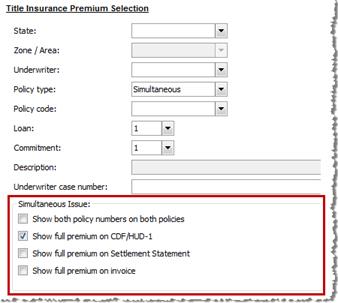
o Show full premium on CDF/HUD-1: This checkbox is checked by default with a CDF order and unchecked with a HUD-1 order. When checked:
§ New fields will show in the Owner’s Policy Premium and Split & Loan Policy Premium and Split sections.
§ The new premium amounts, Full loan premium and SI net owner’s premium, calculated with the new method will be sent to the CDF or HUD line instead of the traditional final premium amounts. Note: it is strongly recommended that setting the CDF line for title fees be managed via the new dropdown lists on the Options screen underneath the Title – CDF section defaults.
o Show full premium on Settlement Statement: This checkbox is activated when Show full premium on CDF/HUD-1 is checked. When unchecked, the traditional premium calculations will appear on the Settlement Statement and when checked, the new premium amounts will appear on the Settlement Statement.
o Show full premium on invoice: This checkbox is activated when Show full premium on CDF/HUD-1 is checked. When unchecked, the traditional premium calculations will appear on the invoice and when checked, the new premium amounts will appear on the invoice.
· Owner’s Policy: Several items have been modified in the Owner’s Policy Premium and Split Section:
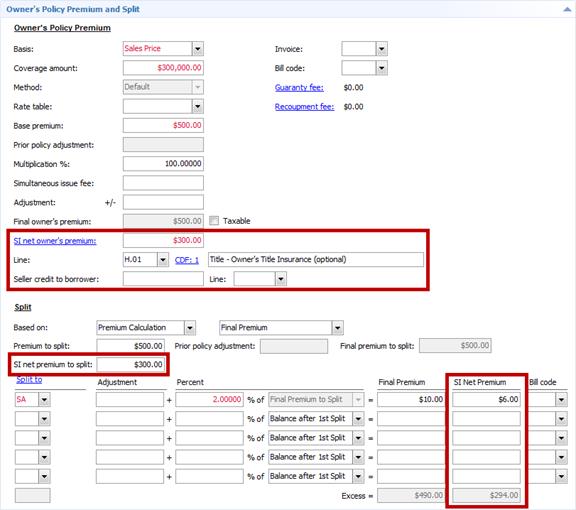
o The new fields only appear on a Simultaneous Issue policy type and only when Show full premium on CDF/HUD-1 is checked. The exceptions are the CDF Line dropdown and Description which always appear in a CDF order.
o A new owner’s premium titled SI net owner’s premium has been added.
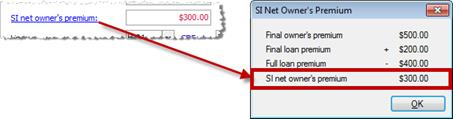
§ This hyperlinked label opens the dialog that shows how the new SI net owner’s premium is calculated. Final owner’s premium and Final loan premium are the traditional premium amounts. Full loan premium and SI net owner’s premium are the new premium amounts using the new method:
o A Seller credit to borrower field and Line dropdown are included for when the seller pays all or a portion of the owner’s policy and the difference between the amount that needs to be paid with the traditional calculations and the amount paid with the new calculations are credited to the borrower. If the premium is taxable, this is also taken into account in determining the credit to the borrower.
o An SI net premium to split field has been added to show the SI net owner’s premium total to split.
o A second amount column titled SI Net Premium has been added to the splits section to show the calculation of the splits using the new premium. These amounts will be used on the CDF and disbursements; the SI Net Premium may be split up to five ways.
· Loan Policy Premium and Split:
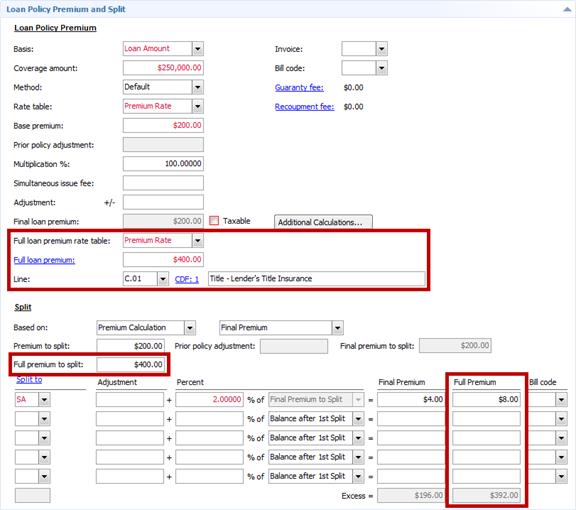
o The new fields only appear on a Simultaneous Issue policy type and only when Show full premium on CDF/HUD-1 is checked. The exceptions are the CDF Line dropdown and Description which always appear in a CDF order.
o A Full loan premium rate table dropdown has been added to be used in full loan premium calculation.
o A new loan premium titled Full loan premium has been added.
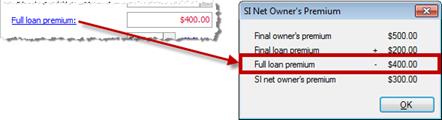
§ This hyperlinked label opens the dialog that shows how the new SI net owner’s premium is calculated. Final owner’s premium and Final loan premium are the traditional premium amounts. Full loan premium and SI net owner’s premium are the new premium amounts using the new method:
o A Full premium to split field has been added to show the Full loan premium total to split.
o A second amounts column titled Full Premium has been added to the splits section to show the calculation of the splits using the new premium. These amounts will be used on the CDF and disbursements.
· Validation warning:
o The following validation message will appear if the sum of the final premiums does not equal the sum of the full loan premium and SI net owner’s premium: "The amounts calculated for the traditional premiums do not equal the amounts calculated for the full premiums."
Agent/Underwriter Splits
Agent and Underwriter splits are not disclosed on the CDF, although split amounts will continue to be sent to the Payee grids for disbursement for premiums, endorsements, and additional title charges.
· Validation warning:
o Each contact receiving splits must have the same split percentage on the loan policy as well as the owner’s policy.
o The following validation message will appear if the splits associated with the final premiums do not match the splits associated with the full premiums: "The splits to T, U, and A for the traditional premiums do not equal the splits for the full premiums."
Description Fields
A new description field has been added to:
· Title Insurance Premiums for the owner’s policy, owner’s policy guaranty fee, owner’s policy recoupment fee, loan policy, loan policy guaranty fee, and the loan policy recoupment fee.
· Additional title charges
· Endorsements
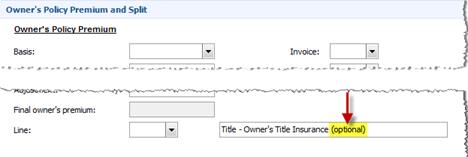
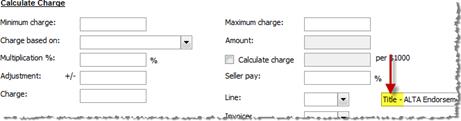
This field is needed because CDF requirements specify that the prefix Title – be added to all title related charges, and that the verbiage (optional) be added at the end of the Owner’s title insurance premium. Because these new fields will default the text as required, it is not necessary to update descriptions in the endorsement and additional title charge lookup tables to include this text. Two examples:
· Title Insurance Premium:
· Endorsement:
CDF Line Dropdowns on Title Screens
There are several ways to populate the CDF lines on the title screens. Since lines sort alphabetically within a given section on the CDF, we have added CDF section defaults to the Options screen. See the Options screen for more details. Although it is possible to group lines when configuring a template or lookup table, the CDF section defaults is the recommended way for setting the CDF lines on the title screens.
Following is a list of CDF lines and the different ways they can be populated:
1. Premium lines, such as the Final loan premium/Full loan premium line and the Final owner’s premium/SI net owner’s premium line:
o Options screen (recommended)
o Policy Manager
o The SelectCDFLine formula may be integrated into a lookup table, template, or field.
o Manual selection
2. Seller credit to borrower line on the owner’s premium
o Policy Manager
o The SelectCDFLine formula may be integrated into a lookup table, template, or field.
o Manual selection
3. Guaranty fee/Recoupment fee lines on the owner’s and loan premiums
o Options screen (recommended)
o The SelectCDFLine formula may be integrated into a lookup table, template, or field.
o Manual selection
4. Endorsements and Additional Title Charges
o Options screen (recommended)
o The SelectCDFLine formula may be integrated into a lookup table, template, or field.
o Manual selection
Existing Liens
The screen accessed through Existing Liens Screen > Note Information Section > Assumption & Modification button has renamed the Include on HUD-1 checkbox to read Include on CDF on CDF orders.
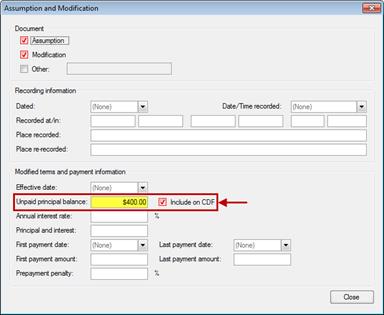
· The total of all existing loans assumed or taken subject to at closing are disclosed/sent to L.03 and N.03 automatically.
· If the existing loan is an Assumption, users can manually enter the amount on line L.03.
· With both HUD-1 & CDF orders, existing HUD-1 Amounts have been renamed Order Transactions.
· Transactions will be generated here based on the data entered into the CDF screens just as they are for HUD orders,
· For CDF orders, the HUD column has been renamed to CDF.
Disbursement Details dialog
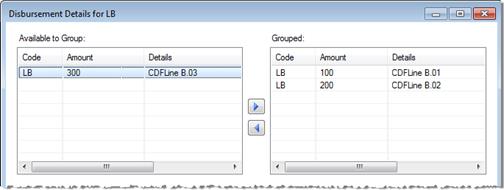
· The Disbursement Details dialog has been modified to allow easier grouping and ungrouping of disbursements.
· To access the new Disbursement Details dialog, you may double-click on the shaded area of any row or use the Group… hyperlink.
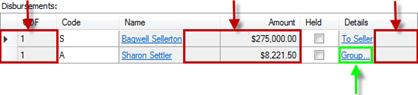
· Clicking directly on other hyperlinks will take you to details for that item (I.E.- CDFLine, Contact, To Seller, etc).

· Grouping: Highlight a row in the Available to Group grid on the left and click the  button to move the disbursement to the Grouped grid. Continue for all rows to group. Click OK when finished.
· Ungrouping: Highlight a row in the Grouped grid on the right side and click the  button to move the disbursement to the Available to Group grid. Continue for all rows to ungroup. Click OK when finished.
This screen and corresponding ReadyDoc provide an audit trail of preparation, approval, delivery, and receiving activities of the Closing Disclosure form. A new ReadyDoc may also be used to generate a print version of the data recorded here.
Closing Disclosure Form (CDF) List
This drop-down list appears at the top of each CDF screen:

· CDF: Each loan present in an order will have a corresponding closing disclosure form. The loan and CDF are linked together automatically in the order. If multiple CDFs exist in an order, you may use this list to select one for editing.
· Status: use this dropdown to set the status of the selected CDF. Options include Amended, Amended Estimated, Amended Final, Estimated, and Final.
· Loan Estimate Delivered: specify when the loan estimate was delivered.
· Waiting period waiver received for: choose CDF and/or Right of rescission if the order can be exempted from the waiting period; the CDF waiver should rarely be used.
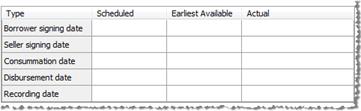
· Dates Grid: Use this grid to specify dates for key events in the life of the CDF.
CDF Deliveries
Use these grids and dropdowns to record the details of CDF deliveries to/from various parties involved in the transaction:
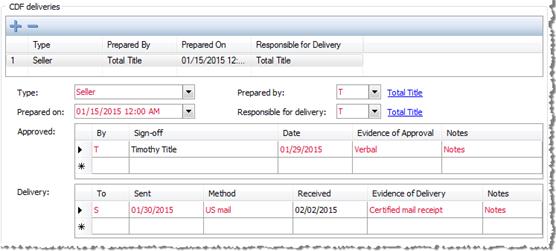
· Delivery & Tracking Grid: Use the  buttons here to add and delete CDF deliveries. After adding a row or multiple rows, you may select the row and then edit the delivery details by using the options below.
o Four dropdown lists allow you to indicate:
§ Type: options include borrower or seller.
§ Prepared On: select a date that the CDF was prepared
§ Prepared by/Responsible for delivery: use these drop-downs to select the appropriate contacts; the hyperlinks here will jump you directly to the order contact’s details screen.
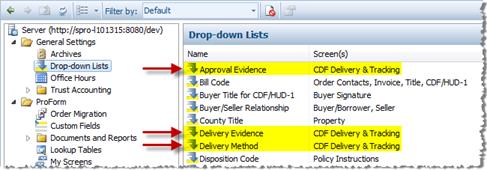
· Approval Grid: Use this grid to specify how and when the CDF was approved prior to delivery. Verbal, written, email approvals may be specified here. The contents of the Evidence of Approval drop-down can be customized by modifying the Approval Evidence Drop-down List in SPAdmin. The contents of the drop-down can be customized by modifying the Delivery Method Drop-down List in SPAdmin (see screenshot below).
· Delivery Grid: Use this grid to specify how and when the CDF was delivered.
o Delivery methods include: Express delivery, US mail, Certified mail, E-mail, In person.
o Evidence of Delivery options include: Express delivery tracking slip, Certified mail receipt, E-mail confirmation, In person signature, Waiting period expired. The contents of the drop-down can be customized by modifying the Delivery Evidence Drop-down List in SPAdmin (see screenshot below):
· CDF Delivery & Tracking Drop-Down Lists: You may access and edit the new down lists from SPAdmin: