SoftPro Select 4.0.0 (4.0.30302.9) - 3/9/2015 - Part 2 of 9
Creating a New Order or Template
When creating a new order or template, the user will need to specify a Settlement Type. The default may be set in SPAdmin. The new order and template dialogs now have two radio buttons for the available settlement types:
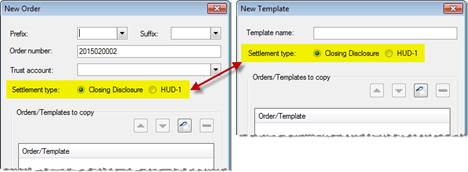
- You may copy from a CDF or HUD-1 order into a CDF order. Read here for more information.
Closing Disclosure Form (CDF) List
This drop-down list appears at the top of each CDF screen:

· CDF: Each loan present in an order will have a corresponding closing disclosure form. The loan and CDF are linked together automatically in the order. If multiple CDFs exist in an order, you may use this list to select one for editing.
Provides a basic summary of loan dates, settlement agent, file number, property address, and sale price/appraised value.
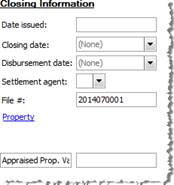
· Date Issued: The date that the Closing Disclosure form is issued to the consumer; must be entered manually.
· Closing Date: The closing date of the transaction. Defaults from the Settlement date/time on the Express Order Entry and Order Information screens, but can be manually overridden.
· Disbursement Date: The loan funding date. This is the same field as the Disbursement date on the Order Information screen.
· Settlement Agent: The order contact handling the loan closing transaction. This field defaults to the first settlement agent contact, if one is available, and lists all available contacts from the Order Contacts screen. This is the same field as the Settlement Agent on CDF Page 5 Contact Information
· File #: This field defaults to the ProForm order number but may be overridden manually.
· Property: Lists the property being purchased. If multiple properties are included in the transaction, the first property listed on the Property screen will appear here. This information is the same as that found in the Property Address fields on the Express Order Entry and Property screens. All additional properties will print on the Attachment page of the CDF.
· Sale Price/Appraised Property Value: If the transaction is a purchase, these fields will populate automatically based on the Sales Price field on the Express Order Entry and Sales Contract & Earnest Money Screens; they may be manually overwritten. If not a purchase, the fields will default to Appraised Property Value.
Displays contact information for the buyer, seller, and lender; selecting the blue Transaction Information hyperlink opens the Order Contacts screen to quickly edit the contact information.
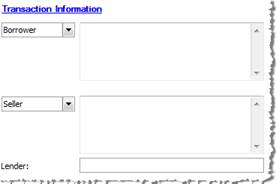
· Borrower: This field will default from the first set of borrower names associated with the loan, and their current address. This is the same information found on the Buyer/Borrower screen. Borrowers are associated to a loan using the Borrowers grid on Loan Information & Funding screen.
o If the Borrower title drop-down is changed here, the title shown in the order’s Edit Signature dialog will be adjusted as well; the title selected from the list is the label that will be printed on CDF Page 1 and Settlement Statements.
· Seller: This field appears if the transaction type is a purchase. It will automatically populate with the name and address for the entity specified in Order Contacts. This information is reflected on the Seller screen as well.
· If the Seller title drop-down is changed here, the title shown in the order’s Edit Signature dialog will be adjusted as well; the title selected from the list is the label that will be printed on CDF Page 1.
· Lender: The name of the loan creditor; populates automatically with the legal name of the lender associated with the loan on the Loan Information & Funding screen.
This section contains details about the loan term, purpose, product, rate, and type. Selecting the blue Loan Information hyperlink opens the Loan Information & Funding screen to quickly edit the loan information.
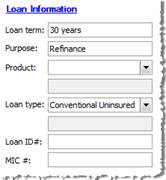
· Loan Term: Defaults based on the payment frequency and total yearly payments on the Loan Terms & Payments screen.
· Purpose: This field will default from the order type that is selected on the Express Order Entry screen (i.e. –purchase, refinance, or equity) or “Construction” when the Construction checkbox is selected on the Express Order Entry screen. The field may be overridden manually.
· Product: This drop-down contains standard loan products. When the Other option is selected, the second line beneath is enabled for manual entry.
· Loan Type: This drop down list contains standard loan types; when the Other option is selected, the second line beneath is enabled for manual entry. These fields are the same as the Loan type and Other description on the Loan Information & Funding screen.
· Loan ID #: Input loan number here. This field is the same as Loan number on the Loan Information & Funding screen.
· MIC #: Input mortgage insurance case number here. This field is the same as Mtg. Ins. Case # on the Loan Information & Funding screen.
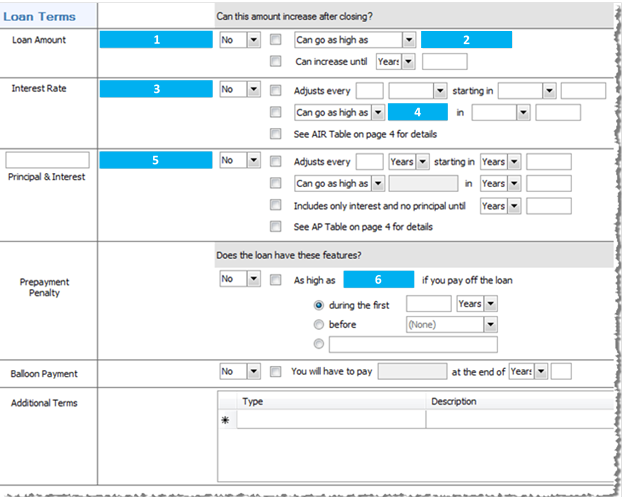
This area is for specifying the loan amount, interest rate, monthly principal/interest, prepayment penalties, balloon payment, and any additional terms.
The loan terms will not print on the Closing Disclosure form unless the corresponding checkbox is selected. If free-form text is needed, the Additional Terms grid at the bottom of the Loan Terms section may be used.
Field Codes
The following items correspond with the fields marked in blue above. These fields match other existing fields in Select:
1. Same as Principal amount of loan on the Loan Information & Funding screen.
2. Same as Maximum loan balance on the Loan Terms & Payments screen.
3. Same as Annual Interest Rate on the Loan Terms & Payments screen.
4. Same as Lifetime maximum rate on the Adjustable Rate Mortgage (ARM) Data screen.
5. Same as Principal and interest on the Loan Terms & Payments screen.
6. Same as Maximum prepayment penalty on the Loan Terms & Payments screen.
Loan Amount
· The first field is for the full loan amount.
· The first drop-down defaults to No when the Loan Balance checkbox on the Loan Terms & Payments screen is unchecked. Otherwise, it defaults to Yes.
· If Yes is selected, the remaining options will allow the user to specify details of the loan amount increase, as well as the specific time period during which this increase may occur.
· If No is selected, the checkboxes beside the associated terms will be unchecked. If you need to enter any terms to print on the form, you may still manually enter that information.
Interest Rate
· The first field is for the interest rate.
· The first drop-down defaults to No, unless the Adjustable Rate Mortgage (ARM) Data dialog Type of ARM field has a value.
· If Yes is selected, the remaining options will allow the user to specify details of any interest rate increases, as well as the specific time period(s) during which these increases may occur.
· If No is selected, the checkboxes beside the associated terms will be unchecked. If you need any of these terms to print on the form, you may manually enter that information.
Principal & Interest
· The drop-down label for this section, Monthly Principal & Interest, is the same field as the Payments Per Year drop down on the Loan Terms & Payments screen.
· The first drop down defaults to No, unless the loan is set up as an adjustable rate mortgage.
· If Yes is selected, the remaining options allow the user to specify details regarding future adjustments that will be made to the principal and interest, including time periods, maximum payments, and interest-only payments.
· If No is selected, the checkboxes beside the associated terms will be unchecked. If you need any of these terms to print on the form, you may manually enter that information.
Prepayment Penalty
· The first drop down defaults to No, unless the Prepayment penalty checkbox is selected on the Loan Terms & Payments screen.
· If Yes is selected, select the appropriate time period within which a prepayment penalty would apply, as well as the maximum amount of the penalty. The maximum prepayment penalty defaults from the Maximum prepayment penalty field on the Loan Terms & Payments screen.
· If No is selected, the checkboxes beside the associated terms will be unchecked. If you need any of these terms to print on the form, you may manually enter that information.
Balloon Payment
· The drop down list defaults to No, unless the Balloon after field on Loan Terms & Payments screen has a value.
· If Yes is selected, the user may enter the amount of the balloon payment as well as the balloon payment due period. The balloon payment amount defaults from the Final payment amount on the Loan Terms & Payments screen but can be manually overridden.
· If No is selected, the checkboxes beside the associated terms will be unchecked. If you need any of these terms to print on the form, you may manually enter that information.
Additional Terms
· This section allows users to enter additional loan terms, if necessary; they will print in the appropriate section of Page 1 on the Closing Disclosure form.
· You may uncheck the loan terms in the above sections and elect to use the Additional Terms instead, if the language that needs to print on the form is different from the standard language. For example: If the lender requires the Loan Amount increase disclosure to print as “Can increase until the 6th year”, the Can increase until year checkbox can be unchecked, and a new row can be added to Additional Terms, with “Loan Amount” selected as the Type and “Can increase until the 6th year” as the Description.
· A lookup table is available in the Additional Terms grid by pressing F9 in the Description column field.
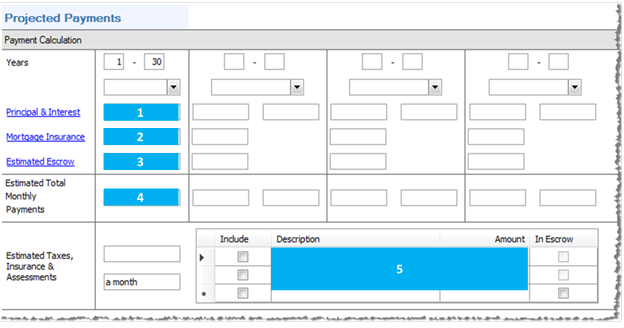
This section provides a breakdown of how loan payments will be structured during the life of the loan, specifying how principal, interest, insurance, and escrow payments will be handled.
Existing Field Codes
The following items correspond with the fields marked in blue above. These fields match other existing fields in Select:
1. Same as Principal and interest on the Loan Terms & Payments screen and Payment Information Letter dialog.
2. Same as Mortgage insurance on the Payment Information Letter dialog.
3. Same as Estimated escrow on the Payment Information Letter dialog.
4. Same as Estimated total monthly payment on the Payment Information Letter dialog.
5. Same as Escrow Payment Descriptions and Amounts on the Payment Information Letter dialog.
Payment Calculation
· The first row allows the user to specify year range(s) for any changes to the payment calculation during the life of the loan. Any column with values entered here will print on the form.
· Row two allows the user to specify interest-only and final payment amounts, if necessary.
Principal & Interest
· The user is able to enter Principal & Interest amounts on this row, including minimum and maximum amounts.
Mortgage Insurance
· Enter mortgage insurance costs on this row; defaults from the Mortgage Insurance field on the Payment Information Letter dialog on the Loan Terms & Payments screen.
Estimated Escrow
· Enter estimated escrow amounts on this row. This defaults from the sum of amounts entered in the Estimated Taxes, Insurance & Assessments grid which also have the In Escrow checkbox checked; can be manually overridden.
Estimated Total Monthly Payment
· Enter the estimated total monthly payments on this row. Minimum and maximum payment amounts may be entered.
· The label will change to show the appropriate payment frequency (ex. monthly, weekly, etc.).
Estimated Taxes, Insurance & Assessments
· The field to the left of the grid will display an amount calculated from information entered into the grid, converted to a monthly amount total.
· Check the Include checkbox to indicate that an item should print on the Closing Disclosure form. If Include is unchecked, the row will not print on the form, and the associated amount will not be included in the total estimated taxes, insurance, & assessments.
· To indicate that an amount is escrowed as part of the loan, check the In Escrow checkbox. This checkbox is enabled when the Include checkbox is checked.
· To add a new row, click on the row with the asterisk (*) and begin entering data. To delete a row, click on the far left column of the grid to highlight the row and press the delete key.
This section displays the total closing costs and cash to close information from Pages 2 and 3 of the Closing Disclosure form. Amount hyperlinks will quickly take you to the appropriate sections where the totals are generated.
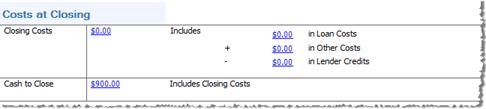
· The lender credit amount may be omitted from the Closing Disclosure form if the amount is zero. To print the zero on the form, use the “with print options” versions of the ReadyDocs and check the option Print $0 Lender Credit on CDF Page 1.