SoftPro Select 4.0.0 (4.0.30302.9) - 3/9/2015 - Part 6 of 9
Closing Disclosure Form (CDF) List
This drop-down list appears at the top of each CDF screen:

· CDF: Each loan present in an order will have a corresponding closing disclosure form. The loan and CDF are linked together automatically in the order. If multiple CDFs exist in an order, you may use this list to select one for editing.
This area contains five fields which must be filled manually.
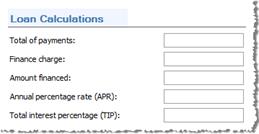
· Total of Payments: The final dollar amount that the borrower will have to pay for the loan, including principal, interest, mortgage insurance, and loan costs. Enter manually.
· Finance Charge: The dollar amount that the loan will cost the borrower. Enter manually.
· Amount Financed: The loan amount available to the borrower after they pay the up-front finance charge. Enter manually.
· Annual Percentage Rate (APR): Borrower costs over the loan term expressed as a rate; not the interest rate. Enter manually.
· Total Interest Percentage (TIP): Total amount of interest the borrower will pay over the loan term as a percentage of the loan amount. Enter manually.
The Other Disclosures section on Page 5 prints the Appraisal, Contract Details, Liability after Foreclosure, Refinance, and Tax Deductions disclosure paragraphs as required by §1026.38(p).
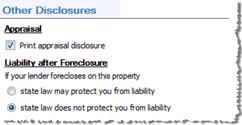
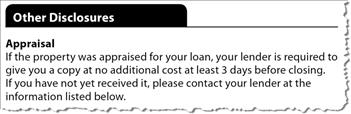
· Appraisal: Check this box to print the property appraisal disclosure on Page 5 of the Closing Disclosure form if it is required:
· Liability after Foreclosure: This is a required selection. It is used to indicate to the borrower what will happen if a lender forecloses on their property and the foreclosure doesn’t cover the unpaid balance on the loan:
o State law may protect you from liability: Check this radio button if state law may protect the borrower from liability for the unpaid balance.
o State law does not protect you from liability: Check this radio button if state law does not protect the borrower from liability for the unpaid balance.
Select an order contact code from the Name drop-down below to populate the fields in the Contact Information grid. Once a Name has been selected, the Contact drop-down will show a list of all people associated with that contact. Select the appropriate contact person for that organization.

Contact Information
The five columns shown in this section (Lender, Mortgage Broker, Real Estate Broker (B), Real Estate Broker (S), and Settlement Agent) display the respective contact and licensing information for these order contacts. Information can be added or edited directly in this section.
· Name: Allows you to select an existing contact from your order or add a new contact. Once a selection is made in this row, the rows beneath will be enabled.
o TIP: Selecting F5 when the focus is in the Name drop-down will take you to the selected contact screen for editing. This shortcut is available throughout the ProForm order on any order contact code drop-down.
· Address: Will default automatically to the selected contact’s address, if available. Missing or incorrect information found here must be corrected by making edits on the order contacts screen.
· NMLS ID: The Nationwide Mortgage Licensing System & Registry number will default if this information already exists in the contact’s information. Otherwise, it may be entered here manually, which will simultaneously update the same information on the selected order contact screen.
· ST License ID: Applies to the primary organization listed in the Name row at the top of the column.
o The title of this row, shown in the far left column, will default automatically based on the state in which the first property resides. This can be manually overridden. It can always be reset back to the default heading by pressing F2.
o The State License ID numbers shown in this row will default if this information already exists in the contact’s information. Otherwise, it may be entered here manually and will simultaneously update on the selected order contact’s screen.
· Contact: Select a name from the lists in this row to show as the primary contact person on the form.
o TIP: Selecting F5 when the focus is in the contact person drop-down will take you to the selected Edit Person dialog for editing. This shortcut is available throughout the ProForm order on any order contact person drop-down.
o Contact NMLS ID: Populates automatically with the selected contact person’s Nationwide Mortgage Licensing System & Registry data. Missing or incorrect information here may be corrected in the corresponding contact person’s information or by typing directly into the field.
· Contact ST License ID: Applies to the primary Contact person selected for the organization.
o The title of this row, shown in the far left column, will be enabled automatically, based on the state in which the first property resides. This can be manually overwritten. It can always be reset back to the default heading by pressing F2.
o The State License ID numbers shown in this row will default if this information already exists in the contact’s information. Otherwise, it may be entered here manually and will simultaneously update on the selected order contact’s screen.
· Email: Populates automatically with the selected primary contact person’s email address. Missing or incorrect information may be corrected on the applicable order contact’s Edit Person dialog or by typing directly into the field.
· Phone: Populates automatically with the selected primary contact person’s phone number. Missing or incorrect information may be corrected on the order contact’s Edit Person dialog or by typing directly into the field.
Additional Contacts
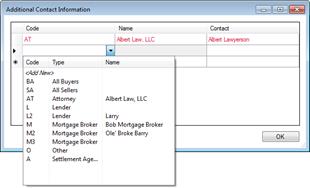
If any additional contacts are needed aside from the five included in this section, the Additional Contacts link—found on top of the grid—may be clicked. The Additional Contact Information dialog will appear, allowing for the selection/addition of new contacts. These contacts will print on the Closing Disclosure form Attachment page:
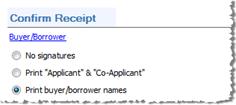
You may adjust the signature lines on the Closing Disclosure form by using these radio buttons:
Buyer/Borrower
· If a Buyer/Borrower exists in the order, the Buyer/Borrower heading hyperlink may be clicked to access the Edit Buyer Signature dialog.
o No signatures: If no signatures are required, select this radio button. The Confirm Receipt section will not be printed. Instead, a Loan Acceptance paragraph will be printed underneath the Loan Calculations section.
o Print “Applicant” & “Co-Applicant”: Select this radio button if the Confirm Receipt section is required to print with the generic text “Applicant”, “Co-Applicant”, and “Date”, under the signature lines. Selection of this option will print the Confirm Receipt section and omit the Loan Acceptance paragraph.
o Print buyer/borrower names: Select this radio button if the Confirm Receipt section is required to print with the buyer/borrower’s names under the signature lines. Selection of this option will print the Confirm Receipt section and omit the Loan Acceptance paragraph.