SoftPro Select 4.0.0 (4.0.30302.9) - 3/9/2015 - Part 5 of 9
Closing Disclosure Form (CDF) List
This drop-down list appears at the top of each CDF screen:

·CDF: Each loan present in an order will have a corresponding closing disclosure form. The loan and CDF are linked together automatically in the order. If multiple CDFs exist in an order, you may use this list to select one for editing.
This section shows additional information regarding the loan.
Assumption
Check will allow if the property is sold or transferred to another person and the lender allows assumption of the loan on the original terms, otherwise check will not allow.
Demand Feature
Check has a demand feature if the lender is permitted to require early repayment of the loan, otherwise check does not have a demand feature.
Late Payment
Any dollar or percent charge imposed by the lender due to a late payment, other than a deferral or extension charge, should be disclosed in this section. This information is the same as that found on the Loan Terms & Payments screen.
·The first and second fields are the same as the Days and Late fee fields on the Loan Terms & Payments screen.
·The blue hyperlink will take the user to Loan Terms & Payments screen.
·Entering a late payment percentage on the Loan Terms & Payments screen will cause this section to default to that percentage, as well as the verbiage “of the monthly principal and interest payment.”
·Entering a late payment amount on the Loan Terms & Payments screen (shown there as the Late Fee field) will cause this section to default to that amount.
Negative Amortization
Check are scheduled to make monthly payments if the loan will have monthly payments that do not pay all the interest due that month. Check may have monthly payments if the loan may have monthly payments that do not pay all the interest due that month. Check do not have if the loan does not have negative amortization.
Partial Payment
Check may accept payments if the lender accepts payments that are less than the full amount due. Check may hold them in a separate account if the lender holds any partial payments in a separate account until the remainder of the payment is received. Check does not accept if partial payments are not allowed.
Security Interest
The Security Interest disclosure will populate with the first property in the order.
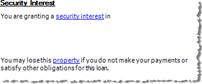
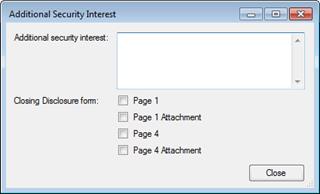
·Click the security interest hyperlink and enter any personal property used to secure the credit transaction on the Additional Security Interest dialog. Check the appropriate page on which the additional information should print:
·Property: Click the property hyperlink to enter or edit the property address on the Property screen.
Escrow Account
The loan may or may not have an escrow account. Use this section to disclose the escrow configuration.
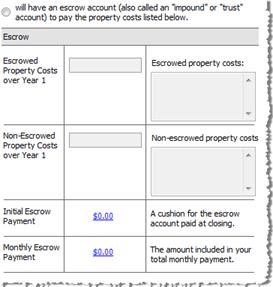
·The first radio button indicates that the loan will have an escrow account and activates the fields beneath.
oInput the appropriate escrowed/non-escrowed costs in the fields on the left side, and short written descriptions in the fields to the right. These fields will default from the Estimated Taxes, Insurance & Assessments section on CDF Page 1 screen.
oAny amounts that are entered in the property cost payment grid and have both the Include and In Escrow checkboxes checked, will appear in the Escrowed Property Costs over Year 1 section. If there are both escrowed and non-escrowed amounts, those amounts that are entered in the property cost payment grid and have only the Include checkbox checked will appear in the Non-Escrowed Property Costs over Year 1 section.
oThe first hyperlink takes you to Section G on CDF Page 2 and allows you to edit the initial escrow payment amounts; the second hyperlink takes you to Projected Payments>Estimated Escrow section on CDF Page 1.
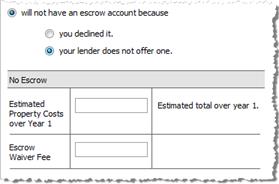
·The second radio indicates that the loan won’t have an escrow account.
oThe two sub-options require that the user specify why the loan will not have an escrow account.
oThe remaining fields are present to note the estimated property costs and waiver fee. Estimated Property Costs over Year 1 will default to the total of all amounts entered in the property cost payment grid on CDF Page 1 where the Include checkbox is checked, but In Escrow is not checked.
Enter any changes to the principal and interest payment, excluding changes to the interest rate, in the Adjustable Payment (AP) Table. This section will print on page 4 of the Closing Disclosure form when Yes is selected in the Interest Only, Optional, Step, or Seasonal drop-downs.
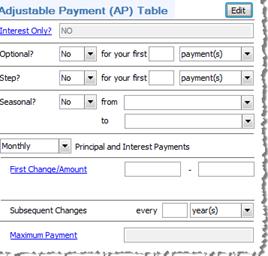
·Edit: This button pulls up the Adjustable Payment (AP) Table Dialog.
·The Interest Only row populates automatically with information specified on CDF Page 1.
oInterest Only hyperlink: moves you to CDF Page 1; will default to Yes when the Includes only interest and no principal until checkbox is checked.
·Optional, Step, and Seasonal payments may be specified, as well as their respective durations.
·The remaining rows allow for the user to specify when Monthly Principal and Interest Payments begin to change, as well the amount of fluctuation and Maximum Payment amount.
·The Principal and Interest Payments drop-down list is the same as the Payments per year field on the Loan Terms & Payments screen.
·First Change/Amount: Click the hyperlink to edit the Principal & Interest section of CDF Page 1; this row defaults with information from that section.
·Subsequent Changes: This row defaults with information from the Principal & Interest section of CDF Page 1.
·Maximum Payment: Click the hyperlink to edit the Principal & Interest section of CDF Page 1; this row defaults with information from the Can go as high as fields.
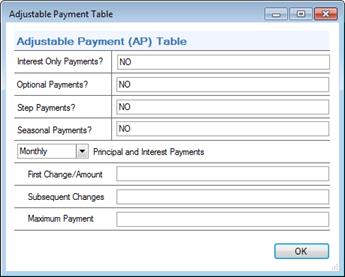
Adjustable Payment (AP) Table Dialog
This dialog allows the user to view the Adjustable Payment material as it will appear in the final document. If necessary, the content in these fields may be edited and altered manually prior to rendering the document:
Adjustable Interest Rate (AIR) Table
Enter any changes to the interest rate, in the Adjustable Interest Rate (AIR) Table. This section will print on page 4 of the Closing Disclosure form when Yes is selected in the CDF Page 1 Interest Rate > Can this amount increase after closing drop-down.
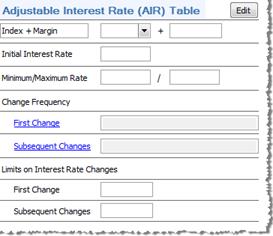
·Edit: This button pulls up the Adjustable Interest Rate (AIR) Table Dialog.
·This table is used to specify the details of the Adjustable Interest Rate of the loan, including maximum and minimum rates, frequency of rate changes, as well as the maximum percentage that the rate may fluctuate.
·Several Fields in this area are shared between screens:
oMargin is the same on the Loan Terms & Payments ARM Data screen.
oInitial Interest Rate is the same as Annual Interest Rate on the Loan Terms & Payments screen and Interest Rate on the CDF Page 1 screen.
oThe Minimum/Maximum rates are the same as the Lifetime maximum/Lifetime minimum rates on the Loan Terms & Payments ARM Data screen as well as the fields found in the Interest Rate section of the CDF Page 1 screen.
·Change Frequency (First/Subsequent): Click these two hyperlinks to edit the Interest Rate section of CDF Page 1; each row defaults with information from the Adjusts every section.
·Limits on Interest Rate Changes (First/Subsequent): These two manual-entry fields exist to specify the maximum increases that may occur with each periodic interest rate changes.
Adjustable Interest Rate (AIR) Table Dialog
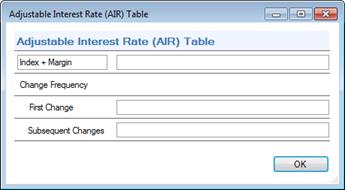
This dialog allows the user to view the Adjustable Interest Rate material as it will appear in the final document. If necessary, the content in these fields may be edited and altered manually prior to rendering the document: