SoftPro Select 4.0.0 (4.0.30302.9) - 3/9/2015 - Part 4 of 9
This page provides more detail regarding closing costs associated with the transaction.
Closing Disclosure Form (CDF) List
This drop-down list appears at the top of each CDF screen:

· CDF: Each loan present in an order will have a corresponding closing disclosure form. The loan and CDF are linked together automatically in the order. If multiple CDFs exist in an order, you may use this list to select one for editing.
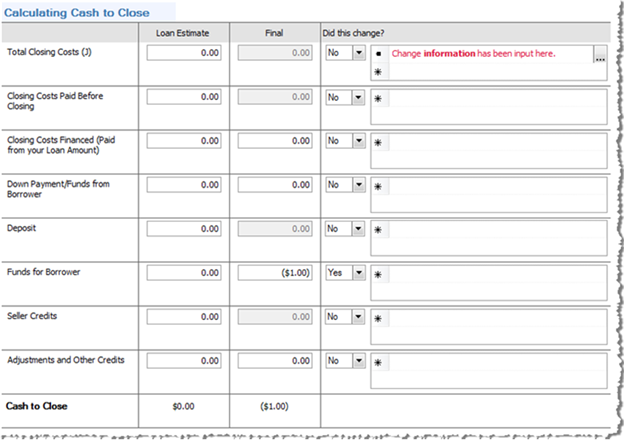
This section allows the user to list any differences in the totals between what was included in the Loan Estimate and on the Final Closing Disclosure Form.
Columns
· Loan Estimate: Most fields in this column are manual-entry and are designated for amounts from the loan estimate provided by the lender. The Loan Estimate Total Closing Costs (J) amount will be the sum of all Loan Estimate amounts and can be manually overwritten.
· Final: All fields in this column are explained in the Lines section below.
· Did this change?: The drop-down list will default to Yes or No based upon any difference between what is in the Loan Estimate column and the Final column. The user may manually input a reason for this difference in the field to the right.
o A Lookup table containing common text snippets is available by pressing F9 in the change reason field.
oClicking the button  at the far right pulls up a dialog for text editing.
o The CDF requires that certain text included in this section be formatted in bold; Ctrl+B is the shortcut keystroke to bold text, but you can also use the Field Editor dialog which provides a formatting toolbar:
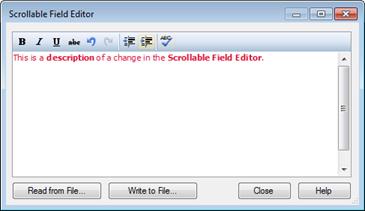
o The Read from File… and Write to File… buttons allow for loading and saving portions of text in .rtf format.
The following items correspond with the fields that fall in the Final column:
1. Total Closing Costs (J): Same as the Total Borrower-Paid Closing Costs on CDF Page 2, Section J.
2. Closing Costs Paid Before Closing: The sum of all Borrower closing costs “paid before closing” amounts.
3. Closing Costs Financed (Paid from your Loan Amount): This is a manual entry field.
4. Down Payment/Funds from Borrower: When the order is a purchase, this field contains the sum of lines K.01-L.02 minus any Closing Costs Financed. When the order is not a purchase, this field contains the sum of all Section K Payoff charges, minus L.02 and any Closing Costs Financed. An amount is displayed if the total of Section K is greater than the total of Section L, otherwise the field displays $0.00.
5. Deposit: Sum of all Deposit or earnest money amounts listed on the Express Order Entry or Sales Contract & Earnest Money screens.
6. Funds for Borrower: When the order is a purchase, this field contains the sum of K.01-L.02 minus any Closing Costs Financed. When the order is not a purchase, this field contains the sum of all Section K Payoff charges, minus L.02 and any Closing Costs Financed. An amount is displayed if the total of Section K is less than the total of Section L, otherwise it displays as $0.00.
7. Seller Credits: This field is the same as the L.05 Borrower Amount field on CDF Page 3.
8. Adjustments and Other Credits: When the order is a purchase, this field contains the sum of lines K.02, K.04-K.15 on CDF Page 3 and subtracts the sum of all non-payoff charges on lines L.03, L.04 & L.06-L.17 on CDF Page 3. When the order is not a purchase, this field contains the sum of all non-deposit lines K.02, K.04-K.15 on CDF Page 3 and subtracts the sum of all non-payoff charges on lines L.03, L.04 & L.06-L.17.
9. Cash to Close: This line displays the totals of the Loan Estimate and Final columns.
This section of CDF Page 3 contains Sections K, L, M, and N. Unlike CDF Page 2, these sections are not sorted alphabetically; lines may not be added or deleted.
Section Grids
The four grids in this section contain manual-input grids.
· You are able to specify the various credits and debits associated with the borrower and seller.
o The Credit/Debit Column found in Sections K and L may be used to specify which items should appear in both borrower and seller amount columns as a debit to one and a credit to the other. Single-sided debits and credit amounts may be specified on certain rows; some rows are always single-sided
· A Tolerance credit drop-down is included in Section L which is used to specify if a credit amount was given to the borrower to offset a tolerance violation.
· Totals from each section are displayed at the top of each respective section.
After clicking a row number hyperlink in the CDF Page 3 grid, a Charge Detail Dialog will appear. These dialogs allow you to enter additional details regarding a charge (ex.-Bill Code, Credit/Debit, Additional Description, Payors, Payees, etc.), multiple charges that will total in the Calculation section at the bottom of CDF Page 3, and choose additional calculation charge types to automatically calculate the charge amount.
Basic & Percent Charges
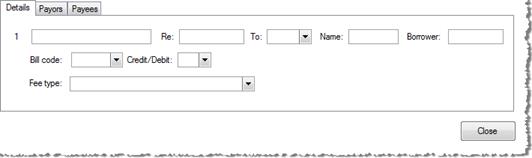
· Details Tab: Both Basic and Percent charges are shown on the Details tab.
· The first row displays the Number, Description, Re, To, and Name information associated with the charge line selected.
o Depending on the section of Summaries of Transactions in which the charge appears, this row will include either a Borrow-Paid or Seller-Paid amount.
· The Bill Code, Credit/Debit, and Fee Type options are used to assign a bill code, specify whether a charge is a credit or debit, as well as set a particular fee type for the charge. Note: The Bill Code option is visible only when the Bill Code option is selected under SPAdmin > Configuration > Security > Profiles > Order tab.
· Tolerance: This field only appears in/applies to Section L. Use to specify the maximum percentage that a charge on the Closing Disclosure may differ from the Loan Estimate. Select None if the tolerance doesn’t apply to the charge.
· Additional Description is reserved for any user-entered notes; these will be printed on the Closing Disclosure–Attachment page and Settlement Statements; this is only visible when the West Coast-specific option is selected on SPAdmin > Configuration > Security > Profiles > Order Tab > Advanced.
· Percent Charge: This charge is calculated in the Details tab; it differs from a Basic charge by adding a Percent Calculation section directly below the first row of data:

o Enter a percentage and select an amount or premium upon which the percentage will be calculated; rounding to the nearest whole dollar may be specified as well.
o This percentage may be further adjusted by entering a number in the Adjustment +/- field and indicating a reason in the For field; include a minus sign in the Adjustment +/- field to subtract the amount.
Proration Charge
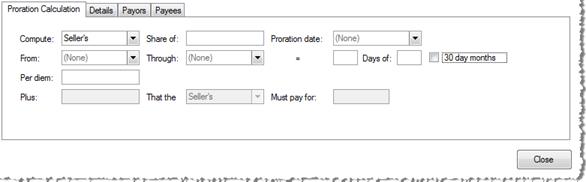
· The Proration Charge is configured in the Proration Calculation tab.
o Compute: defaults to Buyer’s on CDF Page 3.
o Share of: Enter the total amount to be prorated.
o Proration date: Enter a proration date.
o From/Through: Click the drop-down arrows and select dates.
o Days of: These two fields automatically calculate the number of days to be prorated.
o 30 day months: Check this box to use a general 30-day month for the calculation.
o Per diem: This field automatically calculates the per diem rate and may be manually overwritten.
o Plus/That the/Must pay for: This line may be used to add an additional charge for the Buyer/Seller; the last field is included so that the user may enter the reason that an additional amount was added to the total proration charge.
Payoff Charge
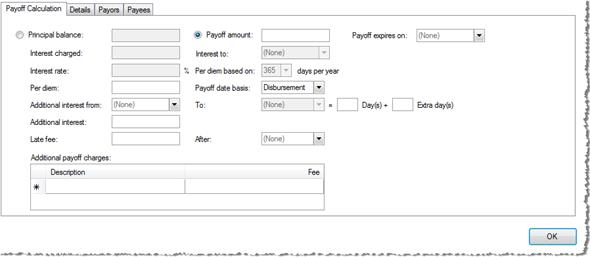
· Payoff Charge: This charge is configured in the Payoff Calculation tab and is used to determine a payoff amount for a selected charge line. It may be calculated based on the Principal balance or a predetermined Payoff Amount.
· Principal balance: Enter the principal balance remaining on the loan. The following items are only editable when this option is selected:
o Interest charged: Enter any lump sum of interest charged.
o Interest To: Select a date from the drop-down.
o Interest rate: Enter the applicable interest rate.
o Per diem based on: Select a number of days per year.
· Payoff amount: This amount usually includes the principal balance and interest. Principal balance, Interest charged, Interest to, Interest rate, and Per diem based on fields will be disabled when Payoff amount is selected.
· Payoff expires on: Select a date on which the payoff will no longer be valid.
· Per diem: If Principal balance is selected, the daily amount of interest will calculate automatically based upon the data in the Principal balance, Interest rate, and Per diem based on fields. If Payoff amount is selected, this amount must be entered manually.
· Payoff date basis: Select Settlement, Proration, Disbursement (default), or Other. If Other is selected, the To date field beneath will be enabled
· Additional interest from/to: The From date defaults from the first day of the month of Settlement, if available.
o The To date may be entered if Other is selected as the Payoff date basis above.
· Day(s)+: The number of days inclusive in the Additional interest from and to date range; may be manually entered or overwritten.
· Extra day(s): Enter the number of extra days to be charged in addition to the calculated number of days in Day(s)+.
· Additional interest: This number is computed automatically as (Per diem amount * (Days + Extra days))
· Late fee/After: Enter any late fees, and select a date after which the late fee should be added to the total.
o The After date is compared to the To date. If the After date is greater than or equal to the To date, the late fee is not added into the total. If After is less than the To date, the late fee is added to the total. If a date is not specified in the To date, then the late fee is not added to the total.
· Additional Payoff Charges: Enter descriptions and fee amounts for any additional item charges. These fees are added to the total calculated charge amount. New lines are added automatically as data is entered and lines may be deleted with the delete key.

The calculation section underneath sections (K) and (L) contains three lines:
· Section K total: Total Due from Borrower at Closing.
· Section L total: Total Already Paid by/on Behalf of Borrower at Closing.
· Cash to Close:
o The Hyperlink takes the user to the Borrower Cash to Close details dialog containing payor/payee grids.
o From: Checked automatically when cash is due FROM the borrower and a receipt is generated.
o To Borrower: Checked automatically when cash is due TO the borrower and a disbursement is generated.
o Amount: Displays the difference between Section K and Section L as a positive amount.
The calculation section underneath (M) and (N) contains three lines:
· Section M total: Total Due to Seller at Closing.
· Section N total: Total Due from Seller at Closing.
· Cash:
o The Hyperlink takes the user to the Seller Cash details dialog containing payor/payee grids.
o From: Checked automatically when cash is due FROM the seller and a receipt is generated.
o To Seller: Checked automatically when cash is due TO the seller and a disbursement is generated.
o Amount: Displays the difference between Section M and Section N as a positive amount.
CDF Page 3 will show a Payoffs and Payments grid and the optional Calculating Cash to Close table when the order meets the criteria for the optional CDFs. The criteria are as follows:
· The Transaction type is not “Purchase”; AND
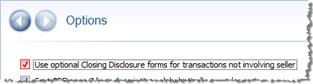
· The Use optional Closing Disclosure forms for transactions not involving seller is checked; AND
· No seller contacts exist in the order; AND
· Sales price is $0.00
Payoffs and Payments
This table contains fifteen lines and is used to summarize payoffs and payments to others required with the transaction:
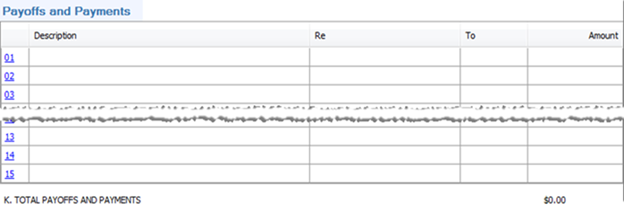
· Description: Enter a description of the line item.
· Re: Enter a memo or other note about this item. The contents of the Re field will print in the memo/extended memo field on receipt and disbursement transactions.
· To: Choose an order contact code. This code defaults to the name that appears as the payee for this charge.
· Amount: Enter the charge amount
· Total: A total for K. Total Payoffs and Payments is displayed directly below the grid.
Charge Detail dialogs
Clicking a blue hyperlinked number on the left side of the Payoffs and Payments grid will display the charge detail dialog for that line. Multiple charges may be added on each line as explained above.
Calculating Cash to Close
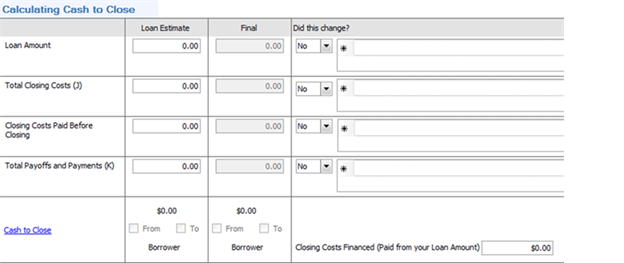
The Calculating Cash to Close section contains fewer options with transactions not involving a seller:
Lines
1. Loan Amount: The first field is for the estimated loan amount; the second field defaults from the final loan amount on CDF Page 1 and the Loan Information & Funding Screen.
2. Total Closing Costs (J): Same as the Total Borrower-Paid Closing Costs on CDF Page 2, Section J.
3. Closing Costs Paid Before Closing: The sum of all Borrower closing cots “paid before closing” amounts.
4. Total Payoffs and Payments (K): The total of charges input in the Payoffs and Payments grid above are displayed here alongside the estimated amount.
5. Cash to Close: This line displays the totals of the Loan Estimate and Final columns.
o The hyperlink pulls up the Borrower Cash to Close details dialog containing payor/payee grids.
o From/To Borrower: The totals calculated the Loan Estimate and Final columns are displayed as positive amounts; the “To” checkbox will be selected if that amount is due to the borrower, the “From” checkbox will be selected if that amount is due from the borrower.
o Closing Costs Financed (Paid from your Loan Amount): This is a manual entry field.