SoftPro Select 4.0.0 (4.0.30302.9) - 3/9/2015 - Part 3 of 9
Use this page to detail closing costs that are associated with the transaction.
Closing Disclosure Form (CDF) List
This drop-down list appears at the top of each CDF screen:

· CDF: Each loan present in an order will have a corresponding closing disclosure form. The loan and CDF are linked together automatically in the order. If multiple CDFs exist in an order, you may use this list to select one for editing.
CDF Page 2 is presented in a grid and allows data to be entered directly within the grid. The following information explains how the section grids function.
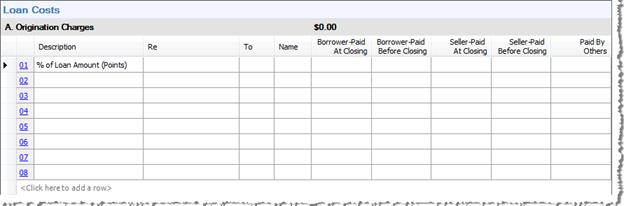
Grid Columns
· Description: Enter a description of the line item.
· Re: Enter a memo or other note about this item. The contents of the Re field will print in the memo/extended memo field on receipt and disbursement transactions.
· To: Choose an order contact code. This code defaults to the name that appears as the payee for this charge.
· Name: Defaults to the name associated with the contact selected in the To field and can be manually overridden.
· Borrower-Paid: The two Borrower-Paid columns allow the user to list items that will be paid by the buyer/borrower:
o At Closing: Indicates the amount listed is to be paid at the closing; the payor POC (Paid outside of closing) checkbox defaults unchecked and is disabled when an amount is listed here.
o Before Closing: Indicates the amount is to be paid prior to the closing; payor POC (Paid outside of closing) checkbox defaults checked and is disabled when an amount is listed here.
· Seller-Paid: The two Seller-Paid columns allow the user to list items that must be paid by the seller.
o At Closing: Indicates the amount listed is to be paid at the closing; the seller POC (Paid outside of closing) checkbox defaults unchecked and is disabled when an amount is listed here.
o Before Closing: Indicates the amount is to be paid prior to the closing; payor POC (Paid outside of closing) checkbox defaults checked and is disabled when an amount is listed here.
· Paid by Others: Indicates the amount is paid by a party other than the borrower or seller. To indicate the amount is POC (Paid outside of closing), check the POC checkbox in the Payors grid; partial POC is not allowed. Amounts entered here will generate Payor and Payee grid rows if they are non-POC items or will be Disburse POC items. They are not used to calculate Cash to/from Borrower or Seller.
Grid Lines
· Headers: Each section has a grey header row that lists the corresponding Section letter, Title, and Borrower-Paid Total.
· Sorting: Each section’s lines are sorted alphabetically by description when an order is saved.
o This sorting does not apply to any default, reserved lines in each section.
o Uncheck the Sort CDF page 2 lines descriptions alphabetically on order save checkbox on the Options screen to disable the automatic sorting feature.
· Row numbers: Sections A-C & E-H have blue, hyperlinked line numbers at left.
o These numbers may be clicked to view and edit information in the Charge Detail dialogs for those items.
o Sections A-C & E-H can each contain up to 99 lines. However, CDF Page 2 is not allowed to expand past a single printed page. If there are more liens than will fit on a single page, the document will automatically split into 2a and 2b.
· Rows may be added by choosing the Click to add new row option at the bottom of a given section.
· Rows may be deleted by clicking in the column to the left of the line numbers to select an entire row and pressing the delete key. Right-clicking in the far left column & choosing Delete CDF Line is also an option.
· The Enter key and arrow keys can be used to navigate the grid.
After clicking a row number in the CDF Page 2 grid, a Charge Detail dialog will appear. These dialogs allow you to enter additional details regarding a charge (i.e.-Seller Pay %, Taxable, Additional Description, Payors, Payees, etc.), add multiple charges that will total on the main line on CDF Page 2, and choose a calculation charge type to automatically calculate the charge amount.
· The two headings at the top of the dialog identify the CDF Page 2 Section and line number for the charge currently displayed.
· Charge details: the top portion details any charges present on the line being edited:

oAdditional charges may be added or deleted by pressing the blue  buttons found in the upper left.
§ There are four charge types available. When adding a new charge to a line, you will be required to select Basic, Percent, Proration, or Payoff.
§ When multiple charges are added to a row via this dialog, charges will be itemized on the Closing Disclosure–Attachment page and the total will print on the main CDF Page 2 line with a default description or reference See additional xxx items.
Payors Grid
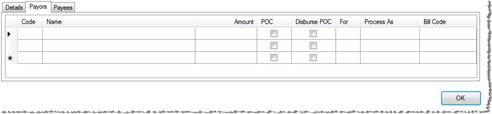
· Payors Grid: All lines in Section A-C and E-H contain the Payors tab/grid.
· Code: Contact types will be determined by amounts entered under Borrower-Paid, Seller-Paid, & Paid By Others.
· Name: This field populates with the selected Code’s Payee name on the order contact screen.
· Amount: This field is editable when an amount has been entered in the Buyer or Seller Amount fields on the corresponding charge line. Reduce the payor amount to generate a new payor row which can be used to specify a different Payor Code, Process As, or Bill Code.
· POC: This checkbox may be selected to specify that the amount will be paid outside of closing (POC). The POC checkbox will be disabled and unchecked for Paid At Closing amounts, and enabled and checked for Paid Before Closing. Amounts on CDF Page 2 in the Paid by Others column or amounts on CDF Page 3 can be shown as paid outside of closing by checking the POC checkbox.
· Disburse POC: This checkbox is editable when the POC checkbox is selected. Selecting Disburse POC will generate a Payee grid row which will create a disbursement for the selected payee code.
· For: If an amount has been entered in Paid By Others, this field will be editable and contain all buyer and seller codes.
· Process As:
o Incoming Fund: Select this option if the amount is being sent to the closing and should appear as a receipt.
o Reduce Funds: Select this option if the amount is being paid at closing out of the funds due to the order contact code selected in the Code field.
· Bill Code: This drop-down list will display when the Bill codes option is checked under SPAdmin > Configuration > Security > Profiles > Order tab. Bill code options will only be available in the Payor Grid when Incoming Funds or Reduce Funds is selected from the Process As drop-down.
Payees Grid
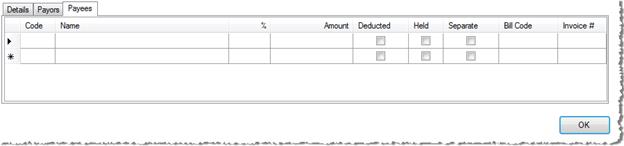
· Payees Grid: All lines in Section A-C and E-H contain the Payees tab/grid.
· Code: Select a contact type from the drop-down list
· Name: This field populates with the selected Code’s Payee name on the order contact screen. If a person associated with an order contact is selected, a separate disbursement is generated for that person.
· %: Defaults to 100% for the first payee entered. By changing the percentage, the amount going to the first party is reduced. This allows you to assign the remaining balance to other parties.
· Amount: This field is editable when an amount has been entered in the Buyer or Seller Amount fields on the corresponding charge line(s).
· Deducted: Select this checkbox to indicate that the amount has been deducted. For example, if a lender is net funding the loan, they are subtracting their fees from the loan amount and only sending the difference to closing. In this case, the lender’s fees would have the deducted checkbox selected and the net funding amount would be automatically calculated to subtract these deducted charges. When selected, Held and Separate are disabled.
· Held: Select this checkbox to designate this amount is being held. Held amounts will appear separately from other disbursements on Order Transactions and Register. To change a Held amount back to a pending disbursement, you can uncheck Held on the Payee grid or Order Transactions. Held is available when Deducted is not selected.
· Separate: Select this checkbox to designate this amount as a separate disbursement from other disbursements to the same payee. Separate will automatically be checked when an order contact person has been selected in the Payee Name drop-down. Separate is available when Deducted is not selected.
· Bill Code: This drop-down list will display when the Bill codes option is checked under SPAdmin > Configuration > Security > Profiles > Order tab.
· Invoice #: Select an invoice number to send the amount to an invoice.
· Description: Only appears in the Payees Grid under Section H. Other Costs to accommodate the additional disbursement from broker’s commission. If the Print Additional Disbursement from Broker’s Commission option is checked on the Options screen, and the CDF To code is a listing or selling broker code, any disbursements paid to a third party will print on the Closing Disclosure-Attachment page along with the Description entered here.
Fees Tab

· Fees Tab: Only shows in section E. Taxes and Other Government Fees; contains the fee schedule grid.
· Fee Schedule Type: Select a Fee Schedule Type.
· Pages: Enter the number of pages for the deed, mortgage, or release.
· Fee Schedule: Select a Fee Schedule.
· Document defaults to blank; types include Deed, Mortgage/Deed of Trust, Release, and Other.
· You will be able to move money to the appropriate columns by using Seller Pay % or Cost paid drop-down.
Multiple Charges on Single CDF Line
A single CDF line can contain multiple charges. To add additional charges to a single line:
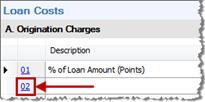
· Select the line number hyperlink to display the details dialog:
· Click the Add button above the top grid
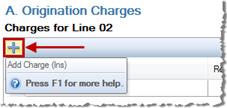
· Choose the type of charge you wish to add. Options include: Basic, Percent, Payoff, or Proration
· The sum of all the charges included under a given line will total on the main CDF line grid.
o All charges that are associated with a single CDF line will be itemized on the CDF Attachment page.
Basic & Percent Charges
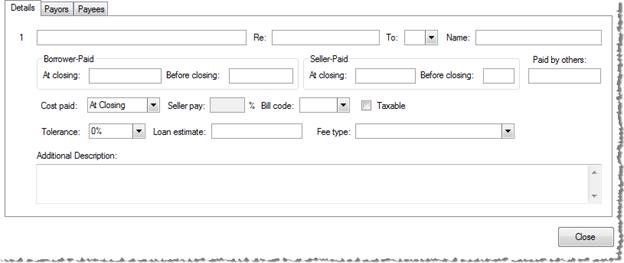
· Details Tab: Both Basic and Percent charges are shown on the Details tab.
· The first row displays the Number, Description, Re, To, and Name information associated with the charge line selected.
· The Second row displays any Borrower-Paid, Seller-Paid, or Paid by others amounts associated with the selected charge line.
· The Cost Paid drop-down, Seller pay % field, Bill code drop-down, and Taxable checkbox are used to specify when the charge will be paid, which percentage should be paid by the Seller, assignment of a bill code, as well as whether or not the amount is subject to sales tax. Note: The Bill Code & Taxable options are visible only when the Bill Code & Sales tax options are checked under SPAdmin > Configuration > Security > Profiles > Order tab.
· Tolerance: Specify the maximum percentage that a charge on the Closing Disclosure may differ from the Loan Estimate. Select None if the tolerance doesn’t apply to the charge.
· Loan estimate: Enter the amount of the charge as shown on the Loan Estimate. This amount is used to generate warning messages when the 0% and 10% tolerances are exceeded. This data will sum to CDF Page 3’s Loan Estimate column, where the sum can be manually entered instead of entering the amounts for each charge.
· Fee type: Select the appropriate option from the drop-down list to indicate the purpose of the charge. This information is used only when electronically transmitting the data to lenders or other parties.
· Additional Description is reserved for any user-entered notes; these will be printed on the Closing Disclosure–Attachment page and Settlement Statements; this is only visible when the West Coast-specific option is selected on SPAdmin > Configuration > Security > Profiles > Order Tab > Advanced.
· Percent Charge: This charge is calculated in the Details tab; it differs from a Basic charge by adding a Percent Calculation section directly below the first row of data:

o Commissions to a Listing or Selling Agent can be calculated using the Percent charge calculation type.
o Enter a percentage and select an amount or premium upon which the percentage will be calculated; rounding to the nearest whole dollar may be specified as well.
o This percentage may be further adjusted by entering a number in the Adjustment +/- field and indicating a reason in the For field; include a minus sign in the Adjustment +/- field to subtract the amount.
Proration Charge
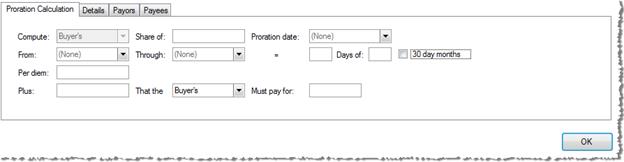
· The Proration Charge is configured in the Proration Calculation tab.
o Compute: defaults to Buyer’s on CDF Page 2.
o Share of: Enter the total amount to be prorated.
o Proration date: Enter a proration date.
o From/Through: Click the drop-down arrows and select dates.
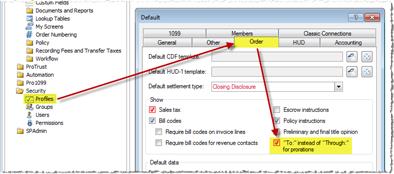
§ “To:” may be used instead of “Through:” by checking that option on the Profile>Order tab:
o Days of: These two fields automatically calculate the number of days to be prorated.
o 30 day months: Check this box to use a general 30-day month for the calculation.
o Per diem: This field automatically calculates the per diem rate and may be manually overwritten.
o Plus/That the/Must pay for: This line may be used to add an additional charge for the Buyer/Seller; the last field is included so that the user may enter the reason that an additional amount was added to the total proration charge.
Payoff Charge
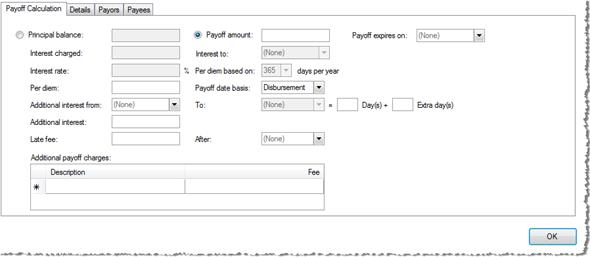
· Payoff Charge: This charge is configured in the Payoff Calculation tab and is used to determine a payoff amount for a selected charge line. It may be calculated based on the Principal balance or a predetermined Payoff Amount.
· Principal balance: Enter the principal balance remaining on the loan. The following items are only editable when this option is selected:
o Interest charged: Enter any lump sum of interest charged.
o Interest To: Select a date from the drop-down.
o Interest rate: Enter the applicable interest rate.
o Per diem based on: Select a number of days per year.
· Payoff amount: This amount usually includes the principal balance and interest. Principal balance, Interest charged, Interest to, Interest rate, and Per diem based on fields will be disabled when Payoff amount is selected.
· Payoff expires on: Select a date on which the payoff will no longer be valid.
· Per diem: If Payoff charge is selected, the daily amount of interest will calculate automatically based upon the data in the Principal balance, Interest rate, and Per diem based on fields. If Payoff amount is selected, this amount must be entered manually.
· Payoff date basis: Select Settlement, Proration, Disbursement (default), or Other. If Other is selected, the To date field beneath will be enabled
· Additional interest from/to: The From date defaults from the first day of the month of Settlement, if available.
o The To date may be entered if Other is selected as the Payoff date basis above.
· Day(s)+: The number of days inclusive in the Additional interest from and to date range; may be manually entered if no to date is specified.
· Extra day(s): Enter the number of extra days to be charged in addition to the calculated number of days in Day(s)+.
· Additional interest: This number is computed automatically as (Per diem amount * (Days + Extra days))
· Late fee/After: Enter any late fees, and select a date after which the late fee should be added to the total.
o The After date is compared to the To date. If the After date is greater than or equal to the To date, the late fee is not added into the total. If After is less than the To date, the late fee is added to the total. If a date is not specified in the To date, then the late fee is not added to the total.
· Additional Payoff Charges: Enter descriptions and fee amounts for any additional item charges. These fees are added to the total calculated charge amount. New lines are added automatically as data is entered and lines may be deleted with the delete key.
A. Origination Charges
Charges paid by the consumer to each creditor/loan originator for generating and extending credit. Items listed here might include: application fee, origination fee, underwriting fee, processing fee, verification fee, rate-lock fee, etc.
· The first line, labeled of Loan Amount (Points), is required and may not be deleted. You may manually enter the percentage of points in the description field, or select the 01 line hyperlink to access the Charge Details dialog and calculate the percentage based on the loan amount.
B. Services Borrower Did Not Shop For
Services that the creditor requires in connection with the transaction. These items are provided by persons other than the creditor or mortgage broker, and for which the creditor does not allow the consumer to shop. This may include: appraisal fees, credit report fees, flood determination fee, etc.
C. Services Borrower Did Shop For
Services that the creditor requires in connection with the transaction. These items are provided by persons other than the creditor or mortgage broker, and for which the creditor does allow the consumer to shop. These items may include: pest inspection fees, survey fees, title insurance-related fees.
D. TOTAL LOAN COSTS (Borrower-Paid)
Provides a sum of the Borrower-Paid subtotals of Sections A-C. This total generally represents all costs that the creditor and mortgage broker require of the borrower in connection with the loan transaction. These lines may not be deleted.
E. Taxes and Other Government Fees
This section details the fees paid to state and local governments, particularly taxes and other government fees for recording documents, and transfer taxes assessed against the purchase price of a real estate contract or the loan amount.
· Rows in this section may only contain one charge per row.
F. Prepaids
Includes prepaid charges for real estate property taxes, insurance premiums, or other items that must be paid to insure the property or satisfy real estate tax obligations before completion of the credit transaction and the real estate closing. Line F.03 is reserved for prepaid interest and must show $0.00 if interest is not collected in advance.
· The first four lines default to Homeowner’s Insurance Premium, Mortgage Insurance Premium, Prepaid Interest, and Property Taxes. These lines may not be deleted.
· Rows 1-3 may not contain multiple charges.
G. Initial Escrow Payment at Closing
This is the amount that the borrower is expected to set aside for the establishment of an escrow account. The first three lines default to Homeowner’s Insurance, Mortgage Insurance, and Property Taxes. These lines may not be deleted.
· Rows 1-2 may not contain multiple charges.
· Property Taxes collected with different time periods may be disclosed on separate lines in this section.
· Details tab: Two unique fields are included on this section’s details tab; they assist with escrow activities and function similarly to the 1000 section of the HUD-1:

o Month/Payments@: Enter the number of months (or payments) that the Lender is requiring to be collected.
o Each: Enter the monthly payment amount.
H. Other
This section is used to disclose any items that are part of the real estate closing, but not required by the creditor or disclosed elsewhere. These may include all real estate brokerage fees, homeowner's or condominium association charges paid at consummation, home warranties, inspection fees, and any owner’s title insurance premiums.
· Real estate commissions must be the total amount paid, regardless of the retention of any earnest money deposit.
· Owner’s title insurance must include “Title-“ at the beginning of the label, as well as the parenthetical “(optional)” at the end of the label when designated borrower-paid at or before closing. This required text will be added automatically when the owner’s title insurance premium is sent to the CDF from the Title Insurance Premiums screen.
I. TOTAL OTHER COSTS (Borrower-Paid)
Displays a sum of the Borrower-Paid subtotals of Sections E-H. These lines may not be deleted.
J. TOTAL CLOSING COSTS (Borrower-Paid)
Displays a sum of the Borrower-Paid subtotals of Sections D (Total Loan Costs) & I (Total Other Costs), totals for all amounts under all Borrower-Paid, Seller-Paid, and Paid by Others, and any general credits provided by the lender. These lines may not be deleted. The Lender Credits description is editable if additional statements are required by the creditor on this line.